

 en
en
How to Fix Packet Loss in CS2 for a Smoother Gaming Experience
Kaustavmani Choudhury
Kaustavmani Choudhury
28 Sep, 2024, 12:21
|Last updated: 9 Apr, 2025, 06:50
Counter-Strike 2, brings a new era to the iconic tactical shooter franchise. With revamped visuals, optimized mechanics, and enhanced networking features, CS2 aims to stand over its gargantuan little brother CSGO, although with varying levels of success.
However, like any online multiplayer game, CS2 is not immune to network issues like packet loss, which can disrupt gameplay and lead to frustrating experiences. For players dealing with lag, delayed hit registration, and unresponsive controls due to packet loss, this guide outlines practical steps to improve connection stability and make gaming smoother.
What is Packet Loss?
Packet loss occurs when data packets sent from a player’s computer fail to reach the game server. This can cause a range of issues, from lag to inconsistent hit registration, as the missing data leads to disruptions in gameplay. Packet loss is often caused by a poor or unstable internet connection but can also stem from problems within the server, network congestion, or faulty hardware.
If you're experiencing lag and packet loss, don’t worry—several strategies can help you regain control and enjoy a stable connection.
How to Check Packet Loss in CS2
Valve has introduced a helpful feature in CS2 that enables players to monitor their network connection in real time. Follow these steps to check packet loss:
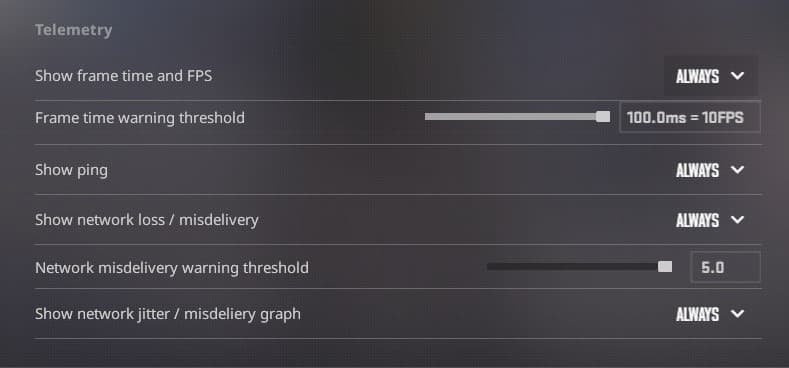
- Go to the Settings menu and select the Game tab, and scroll down to the Telemetry tab.
- Look for the options Show Ping, Show network loss/misdelivery, and Show network jitter/misdelivery graph, and set them to Always.
- While playing, a ping and packet loss graph will appear in the top right corner, giving you a visual representation of your network performance. Use this to check for any signs of packet loss and pinpoint connection issues.
Pinpointing the Source of Packet Loss
Identifying the root cause of packet loss is essential for effectively addressing it. Here are steps to diagnose packet loss more accurately.
Perform a Speed Test
- Use an internet speed test to evaluate your current connection. Check for download/upload speeds and ping times, which are critical for online gaming. Consistently low speeds may indicate an issue with your internet connection.
Use a Traceroute Tool
- Traceroute tools allow you to track the pathway your data takes to reach the server. This can help identify where packet loss may be occurring. Use the tracert command in Command Prompt, followed by the game server's IP address. Review the hops for high latency or packet loss, as these can indicate trouble spots.
Monitor Your Network Continuously
- Network monitoring tools like Datadog can help you keep an eye on your network’s performance over time. Set alerts for high packet loss levels so you can address issues before they disrupt gameplay.
How to Reduce Packet Loss in CS2
Once you’ve identified packet loss, try these methods to reduce it and ensure smoother gameplay.
Enable Buffering in Game Settings
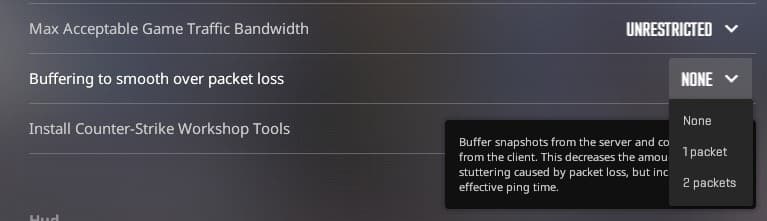
- In the game’s settings, locate the Buffering to smooth over packet loss option and change its value from None to 1 or 2 packets. This setting slightly increases latency but can help reduce the effects of packet loss, creating a more consistent experience.
Reboot Your Router
- A simple but effective solution: turn off your router for 5-10 minutes, then turn it back on. This can resolve temporary connectivity issues by refreshing your network connection.
Update Network Adapter Drivers
- Outdated or corrupted network adapter drivers can cause various connection problems. Ensure that you have the latest drivers installed for your network adapter to optimize performance and avoid packet loss.
Reset Internet Settings
- If packet loss persists, resetting your internet settings may help. Open an elevated command prompt and run the following commands without the quotation marks:
- 'ipconfig /release'
- 'ipconfig /flushdns'
- 'ipconfig /renew'
- 'netsh int ip reset'
- 'netsh winsock reset'
These commands will reset your network adapter settings and clear any DNS issues that may be contributing to packet loss.
Use a Wired Connection
-
- For a more stable connection, switch from Wi-Fi to an Ethernet connection if possible. Wired connections are generally more reliable and less prone to interference, which can significantly reduce packet loss.
Close Bandwidth-Hogging Applications
-
- Programs that consume a lot of bandwidth can interfere with your gaming performance. Close any unnecessary applications or downloads to free up more bandwidth for CS2.
Enhancing Connection Stability
Beyond packet loss, taking steps to stabilize your overall connection can further improve your gaming experience.
- Router Restart: Restart your router regularly to refresh the network.
- Optimize Router Placement: Position your router in a central location with minimal obstacles to maximize signal strength.
- Upgrade Your Equipment: If your router is outdated, consider upgrading to a model with modern capabilities that support high-bandwidth wireless standards.
Packet loss in CS2 can be a frustrating barrier to an enjoyable gaming experience, but with the right techniques, it’s manageable. By diagnosing the problem, applying simple fixes, and utilizing advanced network strategies, players can optimize their connection and enjoy a smoother gaming experience. With these steps, you’re set to improve your gameplay stability and keep the focus on winning.
Featured Image Source: Exclusive to Strafe Esports
Read More:
s1mple and Falcons Struggle Continues: Exit Katowice in Last Place
BLAST Premier World Final 2024: Format, Schedule, Where to Watch and More
S1mple Crosshair Settings: How to Play Counter-Strike Like the Best