

 en
en
How to Show FPS in CS2
Martin Arévalo-Östberg
Martin Arévalo-Östberg
30 Dec, 2025, 09:27
|Last updated: 30 Dec, 2025, 09:30
Whether you’re troubleshooting performance issues, testing new settings, or just curious how smoothly Counter-Strike 2 is running on your PC, keeping an eye on your FPS can tell you a lot. In a game where split-second reactions will mean the difference between victory and defeat, even small drops in frame rate can have a real impact on how responsive everything feels. For that reason, here's a close look at how to show FPS in CS2.
How to Show FPS in CS2
Method 1 — Enable FPS Through CS2 Settings (Easiest Way)
If you're wondering how to show FPS in CS2, then the easiest way is through the game's own settings. The process takes a mere few seconds; all you need to do is:
- Open the game
- Click on the Settings (Gear icon) tab near the top left of your screen
- Navigate to the "Game" tab
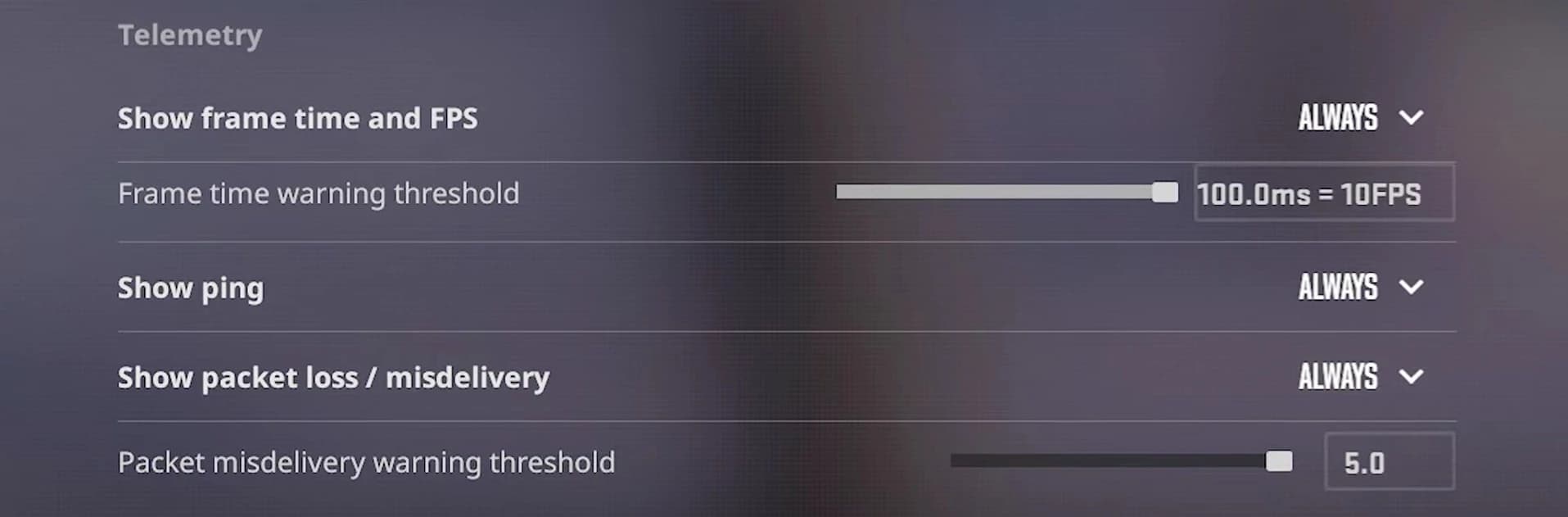
- Navigate to the "Telemetry" tab (Settings → Game → Telemetry)
- Set the "Show frame time and FPS" option to "Always"
- You can also choose the "If conditions are poor" option for your FPS to show only when it is dropping
Method 2 — Show FPS Using Console Commands
Another good way to show FPS in CS2 is through the developer console. To enter the CS2 show FPS command, though, you must first enable the developer console through the in-game settings. Go to:
- Settings > "Game"
- Find "Enable Developer Console", switch to Yes
Then, all you need to do to show FPS in CS2 is:
- Open the developer console in-game with the "~" key (usually found below "Esc")
- Type "cl_showfps 1"
- Press Enter
- Your FPS will then show up at the bottom of your radar, near the top left corner of your screen
If you no longer want to see your FPS, you can simply turn it back off by following the steps above, but entering the "cl_showfps 0" command instead to disable it.
If your CS2 console won't open, first ensure you've enabled it in Settings > "Game". If that's not where the problem lies, then check your keybind in Settings > "Keyboard/Mouse" > "UI Keys" and try reassigning the "Toggle Console" key (often ~ or \) to something else.
Method 3 — Show FPS with Net Graph (More Detailed Stats)
If you want even more information, then you can always use the net graph command. This way, you will also be able to track your server tick rate, ping, packet loss, and choke in CS2.
To do this, just:
- Open the developer console in-game with the "~" key (usually found below "Esc")
- Type "+cl_show_network_graph"
- Press Enter
Note that while net graph will show you a lot more information, it will also clutter your screen considerably more than just having your FPS showing.

Method 4 — Show FPS Using Steam Overlay
Another way to show FPS in CS2 is by enabling this feature through Steam itself. You can do this by opening Steam, clicking on the "Steam" menu at the top left corner, and then clicking on "Settings" from the dropdown menu.
Once you find yourself in the Steam settings menu, just:
- Select the "In Game" tab
- Find the “In-game FPS counter” option, then enable it by selecting the position on your screen where you would like for it to show up
Note that this is a great way of showing FPS for all Steam games, and not just CS2!
How to Adjust the FPS Display
To adjust the position of your CS2 FPS display, you will need to use the Steam overlay option (Method 4 in our guide). After navigating through Settings → "In Game" → "In-game FPS counter" on Steam, you will the option to show FPS in either the "Top Right", "Top Left", "Bottom Right", or "Bottom Left" corners of your screen.
While you can't directly make the FPS counter in CS2 smaller or adjust its text size, the Steam overlay option is generally smaller and more discreet than the CS2 FPS command (cl_showfps 1).
Troubleshooting: FPS Not Showing?
There are several possible explanations for why your FPS might not be showing. Up next, we will go over some of the most common reasons and their fixes:
- Console not enabled
- Make sure your developer console is enabled in CS2 by going to:
- Settings > "Game"
- Find "Enable Developer Console", switch to Yes
- Steam overlay disabled
- If you're using the Steam overlay to show FPS then make sure it is enabled first:
- Open Steam
- Go to Settings > "In Game"
- Switch on the "Enable the Steam Overlay while in-game"
- Wrong command syntax
- The smallest mistake when entering the CS2 show FPS command in the developer console can prove crucial
- Make sure to enter the "cl_showfps 1" command exactly as it is
- Restarting CS2 after changes
- Remember that you will need to restart CS2 for most Settings changes to save
- After turning the "Show frame time and FPS" option to "Always", restart the game
- Many players will find that their NVIDIA Overlay / MSI Afterburner may interfere with CS2
- Consider closing/turning these off while playing the game to show FPS in CS2
Useful Related Commands
When it comes to keeping tabs on your FPS in CS2, there are a few other commands that will help you stay on top of things. Some useful CS FPS commands include:
- To limit FPS: enter "fps_max 400"
- To reset settings: enter "exec default.cfg"
- To show network info, enter any of the following commands for different options:
- "cl_showfps 1"
- "cl_showfps 2"
- "cl_showfps 3"
- "cl_showfps 4"
Frequently Asked Questions (FAQ)
How do I show FPS in CS2 without the console?
Navigate to the Settings → Game → Telemetry tab in-game. Set the "Show frame time and FPS" option to "Always".
How do I show FPS in the top-right corner?
To select where to place your FPS counter in CS2, you must use the Steam overlay. Open Steam, go to Settings, and find the "In game" tab. Find the “In-game FPS counter” option and set it to "Top Right".
How do I hide the FPS counter?
To hide the FPS counter in CS2 either set it to "Never" in the in-game settings, or enter the "cl_showfps 0" command into the developer console.
How do I show FPS and ping at the same time?
To show both FPS and ping at the same time in CS2, go to the in-game settings, then navigate to "Game" > "Telemetry". Set both the "Show frame time and FPS" and the "Show ping" options to "Always".
What is the best FPS setting for CS2?
To get the best FPS in CS2, use Fullscreen Display Mode, lower most Graphics Settings, disable V-Sync, set your Refresh Rate to max, and use your monitor's native Resolution (like 1920x1080) or a lower, stretched resolution (like 1280x960) for more frames.
Don't forget to check out Strafe Esports for all the latest Counter-Strike 2 news and our X account for the latest content and coverage of your favorite eSports. Also, subscribe to our channel on YouTube for exclusive interviews, press conferences, and more.
Feature image credit: Valve