
 en
en
Most Optimal Counter-Strike 2 Settings for Competitive Gameplay
Counter-Strike stands tall as the pinnacle of the tactical FPS genre, and its latest iteration, Counter-Strike 2, continues to attract millions of users daily. The beloved franchise has thrived for decades and shows no signs of slowing down, entertaining newer generations with its iconic gunplay, extravagant skins, and adrenaline-fueled competitive environment.
While Counter-Strike 2 does bring a visual upgrade, its soul remains unchanged—a pure battleground where only two things truly matter: kills and FPS. We can’t help you land more headshots, but we can certainly help you optimize your game for best performance. Here's how.
Launch Options
Before diving into in-game settings, tweak your Launch Options in Steam for a smoother experience.
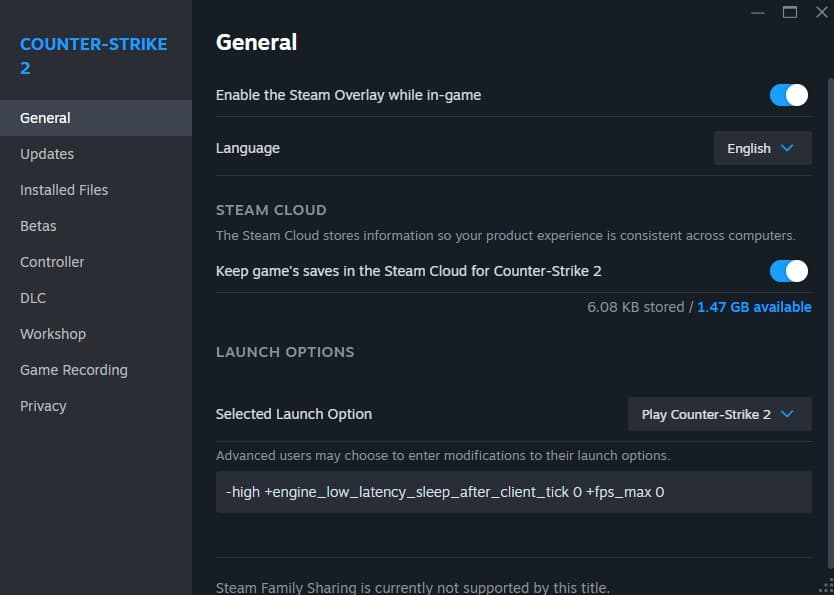
Steps:
- Go to your Steam Library
- Right-click on Counter-Strike 2 > Properties
- Under the General tab, find Launch Options
- Add the following:
-
-high -vulkan +engine_low_latency_sleep_after_client_tick 0 +fps_max 0
-
What these do:
- -high: Sets the game to high CPU priority
- -vulkan: Launches using Vulkan renderer (experimental; best for AMD GPUs or Linux users)
- +engine_low_latency_sleep_after_client_tick 0: Reduces input lag by preventing processor sleep
- +fps_max 0: Removes FPS cap
In-Game Settings
Let’s enter the game now. These settings can be briefly divided into three parts: Video, Audio and Game. While most of them are personal preference, we’d like to go over each of the options that the community has widely accepted and why they have done so.
Video Settings
Navigate to: Settings > Video
VIDEO
-
- Display: In case of multiple displays, select your primary display with the higher refresh rate
- Display Mode: Choose “Fullscreen” for maximum performance
- Aspect Ratio: Personal preference
- Most of the community uses 4:3 for wider player models, but it is largely a comfort pick so choose whatever feels natural to you
- Resolution: Ideally, this should match your native resolution (whatever you use for your PC), but should be the highest in the case of 4:3 aspect ratio. In some system, choosing lower resolution can boost the fps
- Refresh Rate: Should match your display’s refresh rate
ADVANCED VIDEO
-
-
- Game Related
- Boost Player Contrast: Enable (helps with player visibility)
- V-Sync: Only enabled if your display refresh rate is significantly higher than fps
- Max FPS in Game/Menus: Usually Uncapped, You can limit your frame rate for a stable output
- Global Shadow Quality: Medium (Shadows can help you get an advantage on certain angles)
- Dynamic Shadows: All (Sun-only removes the shadow casted by other source and might prove a disadvantage in some situations)
- Nvidia Reflex Low-Latency: Enabled
- AMD Anti-lag 2.0: Enabled
- Quality Related: Largely controls how detailed the game looks. Set to Low/Disabled/Performance for competitive mode
- Multisampling Anti-Aliasing mode: None (Each of the modes increase how well the geometric details are handle, disabling decreases quality and improves performance)
- Model / Texture Details: Low
- Texture Filtering: Bilinear
- Shader Detail: Low
- Particle Detail: Low
- Ambient Occlusion: Off
- High Dynamic Range: Performance
- FidelityFX Super Resolution: Balanced or Performance
- Game Related
-
Audio Settings
While most audio settings are subjective, do not disable:
- Ten Second Warning Volume
- Bomb/Hostage Volume
These cues are crucial for timing and objective tracking—even if the rest of the music is turned off.
Game Settings
These settings are mostly quality of life and do not directly improve performance of the game itself. They are optimized for competitive gameplay.
Navigate to: Settings > Game
- GAME
- Enable Developer Console: Yes (It is a QoL setting and enables console command for your game)
- Max Acceptable Matchmaking Ping: Helps you filter the servers based on ping
- Max Acceptable Game Traffic Bandwidth: In case of a slower internet connection (slower than 4 Mbps) you can limit how much bandwidth the game can use
- Buffering to smooth over packet loss / jitter: Set it to 2 or 1 if you play on high ping or a connection with jitter
- HUD: Most of these are personal preferences. One setting that can help you with clarity is the Large Player Count. Setting it to Yes displays the alive player count instead of their avatars
- TEAM & COMMUNICATION: These settings are personal preferences. One QoL is the Show Player Colors in Competitive: setting it to Color and Letters can help for Color blind players with identifying the opponents with much ease
- ITEM
- Detach Silencer on M4A1-S and USP-S: Disabled (avoids accidental detaching of silencer)
- Viewmodel Position: Personal Preference (we will do a detailed article on it soon)
- Preferred Viewmodel Left/Right Handedness: Personal Preference: if you don’t want to switch it, you should unbind the key
- First Person tracers: Enabled (Disabled can help performance slightly but it isn’t significant)
- RADAR
- Radar Centers the Player: No - helps you see a wider area of map/ Yes - Minimap from your perspective
- Radar is Rotating: Yes - Better perspective, especially with improved audio
- Radar Hud Background Opacity / Radar Hud Size / Radar Map Zoom: 0.70/1.30/0.45 values help you with a full map without being a visual distraction
- Radar Map Alternate Zoom: Great utility: you can use it to switch Radar Map settings based on situations
- GRENADE LINE-UP RETICLE: These settings can help you get a line-up reticle for grenades: using them for Smokes and Mollies can help with accurate line-ups. Set the slider to 0 for instant reticle
- DAMAGE PREDICTION: Can make the game feel much smoother, unfortunately leads to false positives so keep it off unless you play on an excellent system with low ping
With these settings you are all set to climb through the Premier ranks. With the Austin Major fast approaching, quickly win as many games and get your highest ranking to get a Season 2 Medal.
Don't forget to check out Strafe Esports for all the latest Counter Strike 2 news and our X account for the latest content and coverage of your favorite eSports.
Also, don't forget to subscribe to our channel on YouTube for exclusive interviews, press conferences, and more.
Featured Image Credits: Valve
Read More: Team Vitality Breaks Astralis’ Legendary Win Streak