
 en
en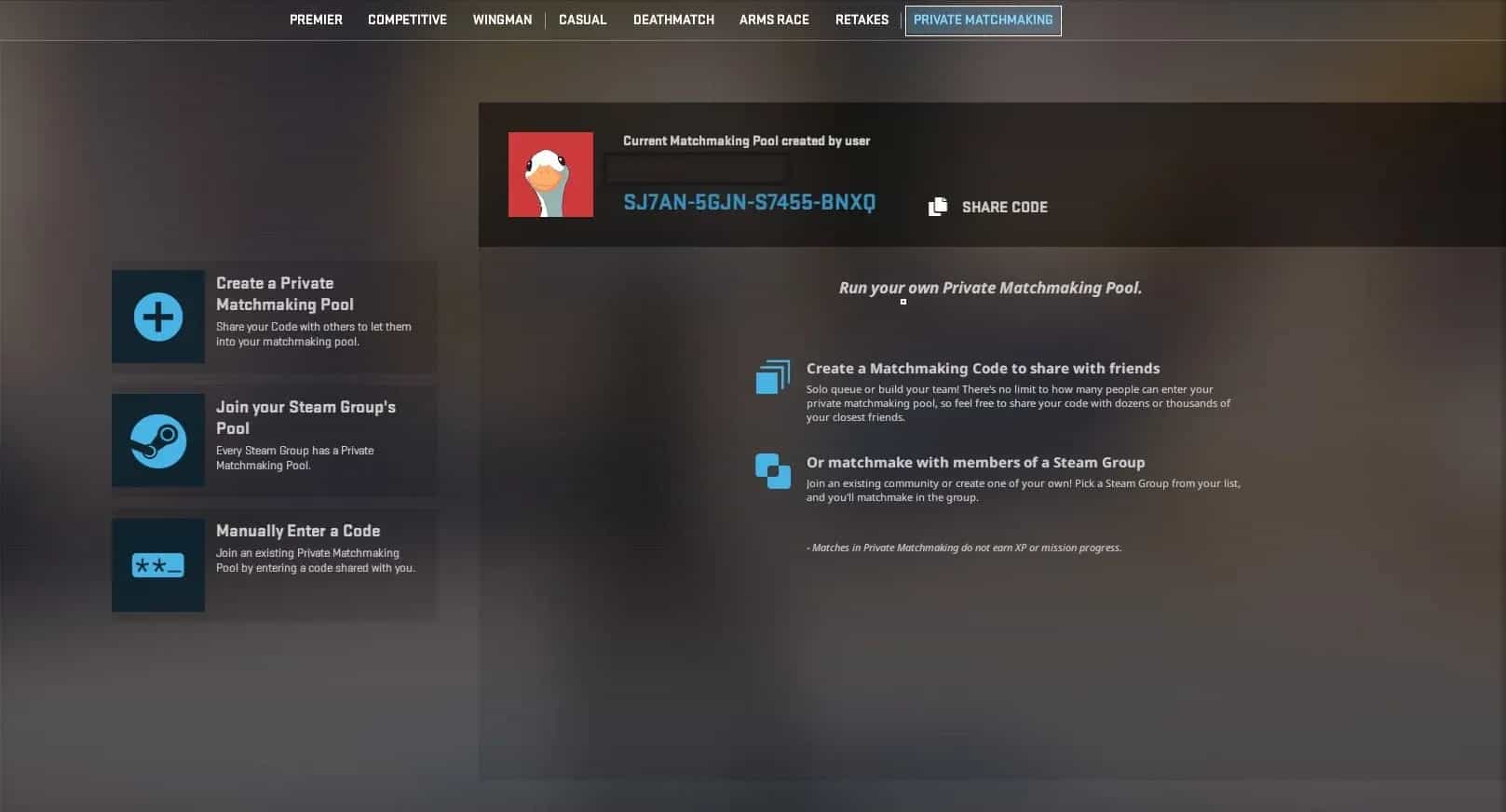
How to Make a Private Match in CS2

Counter-Strike has long dominated the tactical/first person shooter category of gaming. With a history of 26 years, the game’s latest edition, CS2, still has an active community that login daily to play the familiar shooter.
While custom made, PvE modes do exist in CS and have existed, the true thrill of playing CS is the PvP or online matchmaking. This CS2 matchmaking essentially pairs you with 9 other players to play the traditional 5v5 game of Counter-Strike. There are ranked modes that allow players to test their mettle against players worldwide and rank up the skill leaderboard.
During this grind, you can also party up with up to four other friends to make the climb more fun. But how to play with more than 5 players? Or play against your friends? In that case, private matchmaking and custom lobbies might be the solution you are looking for.
In this guide we take you through everything CS2 matchmaking has to offer along with how to set up private matchmaking, custom lobbies and more.
Getting Started with CS2 Matchmaking
There are a total of six public matchmaking modes available in CS2. These can be divided into Ranked and Unranked
- Ranked
- Premier
- Competitive
- Wingman
- Unranked
- Casual
- Deathmatch
- Arms Race
- Retakes
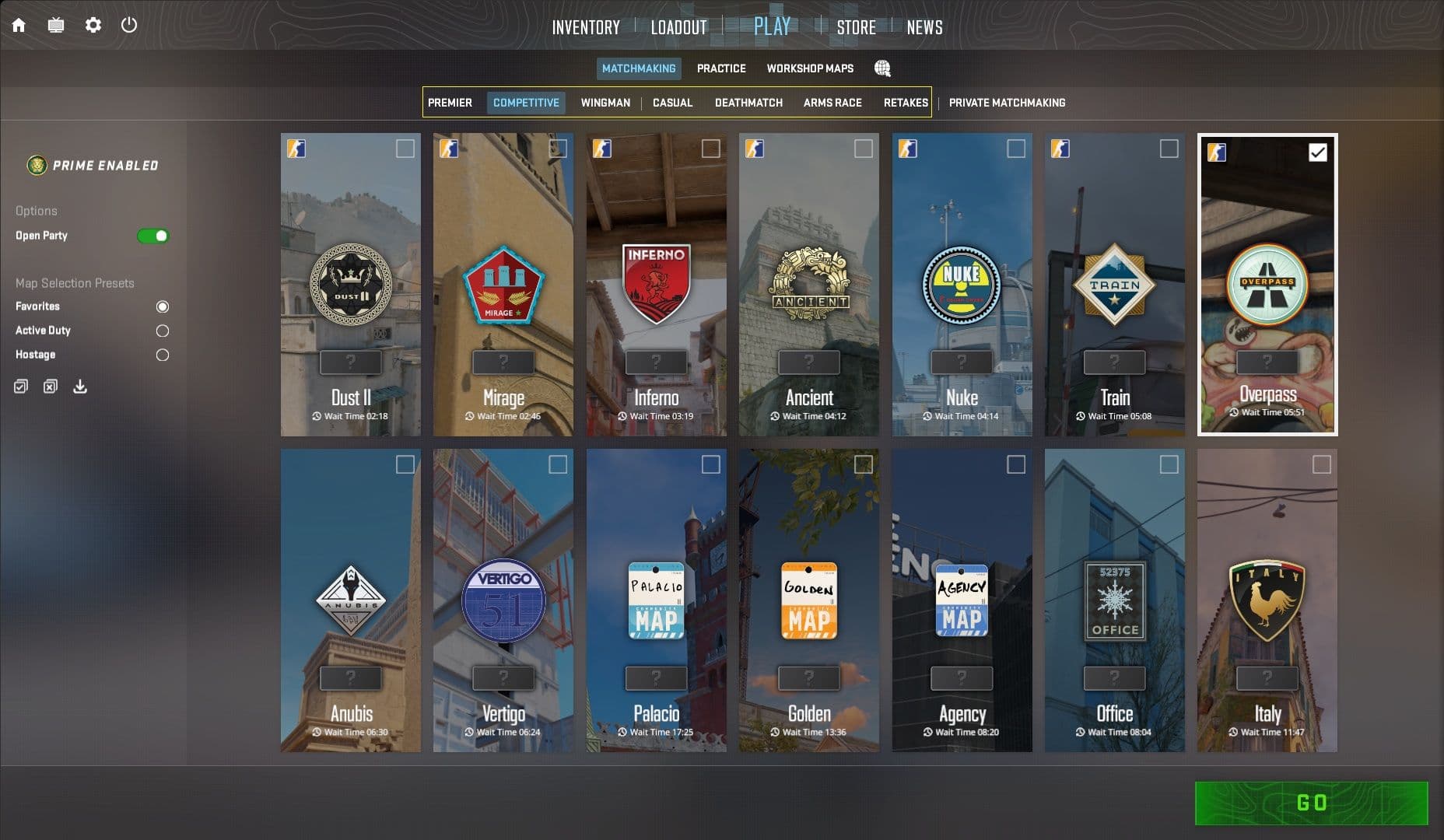
Except Premier, all the other modes are free-to-play in CS2.
To queue for any of these modes:
- Login into the Game
- Click on Play
- Choose a mode of your liking
- Navigate and Go
- Once you find a server, Select a side and play the game
- This only applies of Unranked modes
Premier and Competitive are the only two modes initially locked. To unlock competitive play you have to gain enough XP (10,000 XP) by playing the unranked modes to level up to ‘Private Rank 2’
The CS2 Premier is available via Prima Status upgrade available for ~$10. This also unlocks weekly drops and armory for in-game cosmetics.
Find our guide on How to unlock Premier in CS2 for a detailed guide on Premier mode [here]
Ranks and Rating in Matchmaking
There are three ranks in Counter-Strike:
- Premier Rating - Rating achieved by playing the Premier mode
- Competitive Rank - Per Map Rank that signify proficiency
- Hidden MMR - Used for Unranked modes
The Hidden MMR is the most crucial and largely invisible, this controls every aspect of matchmaking. The ratings and competitive rank also depends on the hidden MMR and it largely impacts what rank a player is and the amount of rating they get in every match.
Matchmaking Settings and Configuration
The single biggest factor that affects that game is ping or latency. To understand how it affects the game, think of it as the time it takes for information to travel from your computer to CS servers and back.
Now the most crucial aspects of CS2 i.e. movements and shooting largely depend on how and when the information reached the server. That means, higher ping drastically degrades in-game experience.
The easiest way to ensure you are getting the best ping is to adjust the Max Acceptable Matchmaking Ping. This essentially controls which region/server your game defaults to.
You can control this value via settings.
To do via settings:
- Navigate to Settings
- Under Game > Game Settings
- Navigate to Max Acceptable Matchmaking Ping
- Here you can also see the available regions and corresponding pings
- Set a value that ensure you can connect to two closest regions
- Ideally you should set it to 40ms
There are two additional settings you should adjust here are:
- Max Acceptable Game Traffic Bandwidth - set to Unrestricted
- Buffering to smooth over packet loss/jitter - set to 2Mbps if you experience constant loss
Most other settings are personal preference, including crosshair, sensitivity and loadout. But a good rule of thumb for each of these are:
- Crosshair
- Ensure the crosshair is visible on multiple maps
- The size shouldn’t interfere with opponent player model visibility
- Sensitivity
- Easiest way to calibrate is to Strafe while holding a single point on a wall
- Adjust based on if you overshoot or undershoot
- If you overshoot - Decrease
- If you undershoot - Increase
- Loadout
- Ensure these Primary weapons
- AK-47
- Desert Eagle
- M4-A1s / M4-A4
- AWP
- Ensure these Primary weapons
- The remaining slots in loadout can be filled by personal preference
Now that you understand how mm works in CS2, let’s get to the meat and potatoes - Private Matchmaking.
Private Matchmaking and Custom Games
In case you want to play Premier with a closed group of friends, you have the option of Private Matchmaking. This is essentially playing Premier without rating with 10 friends on the CS2 servers.
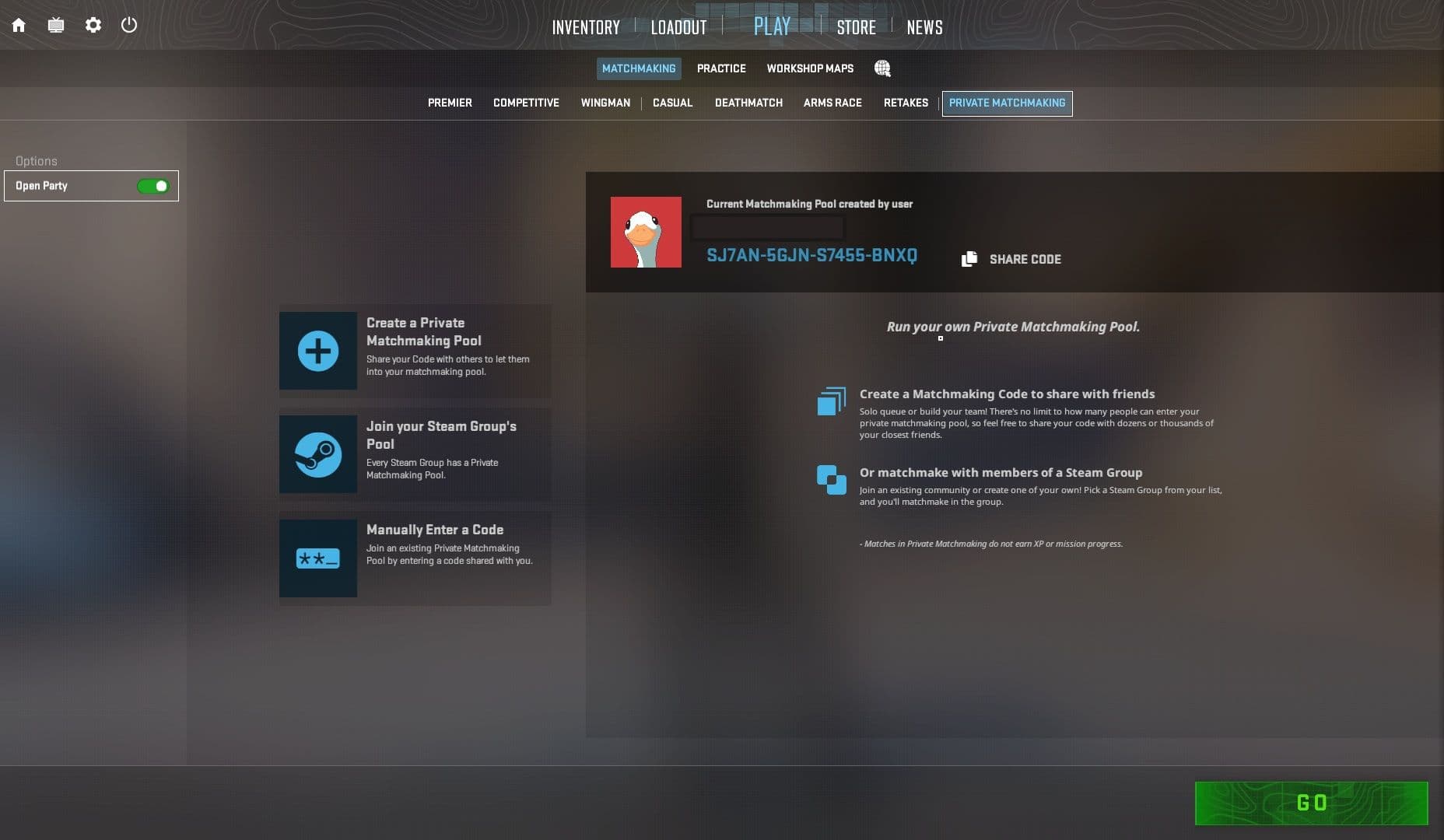
To start a Private Matchmaking game
- Navigate to Play > Private Matchmaking
- Share the matchmaking code with 9 friends
- OR Enter a matchmaking code
- Friends can directly join Private Matchmaking if you have toggled Open Party
- You can toggle to Close Party if you want to ensure only invited friends join
- Once you have 10 players click go to find a server and play a private game.
Limitations and Restrictions of Private Matchmaking
- Private Matchmaking doesn’t earn XP or affect MMR
- You need a lobby of 10 players to start the game
- You essentially play a Premier Game but without rating.
- Meaning you cannot choose maps or modes.
- This is a game still played on the CS2 server, so this is not LAN.
- VAC banned accounts cannot play Private matchmaking since it uses Valve servers.
In case you want to play with a smaller group and control many aspects of the game, a Custom Lobby is the answer. A Custom Lobby uses the lobby leader’s system and network to host a game. But with Custom lobby you can choose between modes and maps. You can also play workshop maps and modes with friends.
To create a Custom Game:
- Invite your friends to your party
- Navigate to Practice > Select Map and Mode
- Press Go
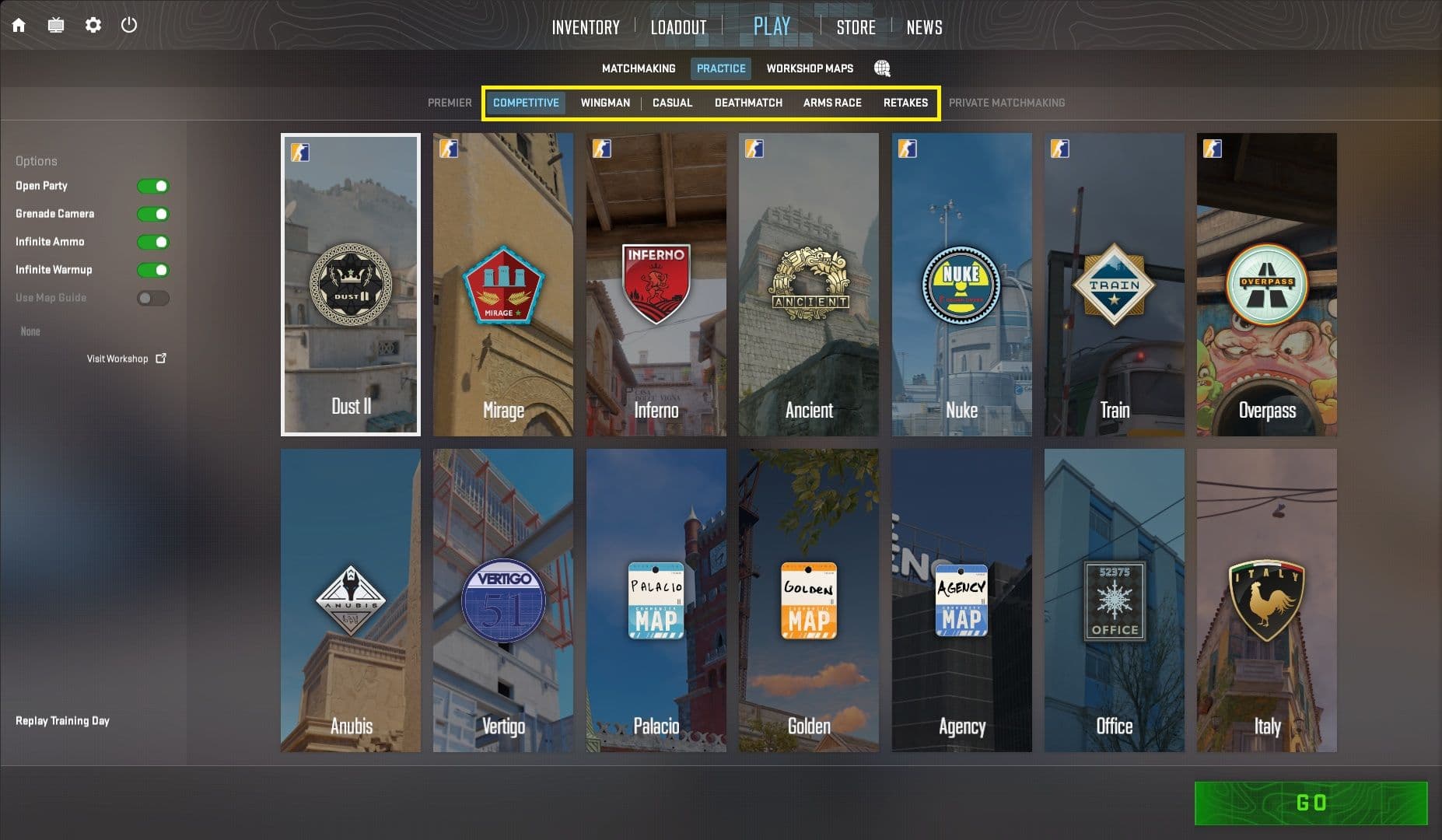
Once the map loads, your friends and you will be loaded into the map/mode of your choice. Depending on the total player capacity of the mode, the game will fill bots. You can control multiple aspects of these servers, including free grenades, free armor, custom speed, freeze time, round time etc. The console commands for this are as follows:
|
Command |
Value |
Description |
|
bot_kick |
Kicks Bots | |
|
bot_add |
Adds a bot randomly | |
|
bot_add_ct |
Adds bot to CT | |
|
bot_add_t |
Adds bot to T | |
|
sv_cheats |
1 - Cheats 0 - No Cheats |
Allows for customization |
|
mp_autoteambalance |
1 - Autobalances teams 0 - Disable autobalance |
Used to creating bot practice lobbies |
|
mp_limitteams |
1-100 |
Limits the number of players per team |
|
mp_buy_anywhere |
1 - True |
Allows buying anywhere on the map |
|
mp_buytime |
value in seconds |
Set to Round time for buying all time |
|
mp_buy_allow_grenades |
1 - Allows Buying Nades 0 - Disable Buying Nades |
Controls the ability to buy grenades |
|
mp_buy_allow_guns |
1 - Allows Buying weapons 0 - Disable Buying weapons |
Controls the ability to buy weapons |
|
mp_afterroundmoney |
0-16000 |
Sets the money recieved after each round |
|
mp_startmoney |
0-16000 |
Sets the starting money |
|
mp_starting_losses |
1-4 |
Sets the Loss bonus |
|
mp_free_armor |
0 - No Free Armor 1 - Free Armor 2 - Free Armor + Helmet |
Free Armor |
|
mp_freezetime |
value in seconds |
Controls the freeze time between rounds |
|
mp_friendlyfire |
True/False |
Controls friendly fire |
|
sv_accelerate |
speeds or slows down the game | |
|
sv_gravity |
800 is base |
Controls the gravity value |
|
mp_rountime |
in minutes < 60 |
sets roundtime |
|
mp_rountime_defuse |
in minutes < 60 |
sets roundtime for defusal mode i.e. 5v5 bomb plant |
|
mp_roundtime_hostage |
in minutes < 60 |
sets roundtime for hostage mode |
|
mp_warmup_start |
Sets the game to warmup mode | |
|
mp_warmup_end |
Ends Warmup | |
|
mp_warmup_pausetimer |
1 |
Permanent Warmup - Useful for practising nades |
|
mp_pause_match |
Pauses Game before next round | |
|
mp_restartgame |
Resets map in current session (with applied modifications) | |
|
sv_restart |
Restarts the server |
There are more commands to control various aspects of the game. You can find these via console.
|
mp_commands |
Control the round-by-round aspects / game aspects |
|
sv_commands |
Control the physics aspects of server |
Now that you have chosen the map, mode and curated the settings. You are free to play the game as per your liking.
The limitation of a custom game is the use of lobby leader’s resources to host a server, which can affect the quality of the games played, especially if the system and network isn’t capable of handling the load. If the lobby leader and the party share the network, the experience escalates multiple folds.
To play a Workshop Map/mode with friends:
- Create a lobby with friends
- Navigate to Workshop Maps > Choose the map you want to play
- Select Go
This creates a custom lobby with workshop maps. If the workshop map has a custom mode, you will have an option to use it. The same custom game can be used to set up a 1v1 game.
To Set Up 1v1 Games:
- Create a lobby with friend/friends
- Find an appropriate aim/dueling map in Counter-Strike workshop
- Subscribe to the map
- Once the map is available under Workshop Maps > You can choose it and start the game
- Your friend/party automatically downloads the map and mode settings
The same custom game method can be used to create a custom game using the map pool day. The best way to do this is:
- Invite your friends to your party
- Navigate to Practice > Select Arms Race > Choose Pool Day
- Press Go
With this you create a lobby with your friends and play pool day.
Troubleshooting
Here are a few common issues you can run into while queuing into CS2.
Can’t Find a Match / Long Queue Times
- Ensure you are playing in an active region
- You can change the max ping setting to search servers outside your region
- Or play a private game using Private Matchmaking or Custom servers.
- The matchmaking search uses the host’s settings and ping to search for servers, so the rest of the party don’t have to adjust their settings
Bad Ping / Unstable Servers
- For starters you can adjust the Buffering to smooth over packet loss/jitter setting.
- Switching to LAN cable instead of WiFi can help to reduce ping
- If the issue still persists, check the latency using Run Command in Windows
- Press Win+R
- Enter “ping 8.8.8.8 -t” (Google DNS)
- Monitor the results
- If you notice multiple “Request Timed Out”s, contant your ISP and resolve the issue.
- You can also use services like ExitLag based on your region
Inventory/Skins not loading in matchmaking
- The skins/inventory loading issue can usually occur in case of bad internet or poor graphics performance
- In any case reconnecting to the game server should solve the issue.
- If the issue persists, you can raise a support ticket.
VAC / Trust Factor Issues
- Trust Factor issues occur if a friend in your party has a lower trust factor than the rest of the party.
- Usually the party can still queue, but it will use the lower trust factor matchmaking, meaning chances of encountering a malicious player increases.
- You can increase your trust factor by queuing regularly but you can’t check your active trust factor.
- To resolve any VAC related issues you can verify the integrity of game files
- Navigate to Steam Library > Right Click on Counter-Strike 2
- In Properties > Installed Files > Navigate and Select Verify Integrity of Game Files
- Restarting the game/steam and PC also helps with this
- In case of a false VAC ban, you can raise a support ticket and get it resolved.
Friend Lobby Not Working
-
This issue occurs when the game is out of sync with the server, a simple client restart should solve it.
Conclusion
Counter-Strike 2 allows the players to experience matchmaking multiple ways including custom maps and modes from workshop.
While the public matchmaking modes help you test your mettle against the community. Private Matchmaking and Custom Games allow for a more personalized laid back experience.
You can find more such guides on Strafe
Don't forget to check out Strafe Esports for all the latest Counter-Strike 2 news and our X account for the latest content and coverage of your favorite eSports. Also, subscribe to our channel on YouTube for exclusive interviews, press conferences, and more.
Feature image credit: Valve