
 en
en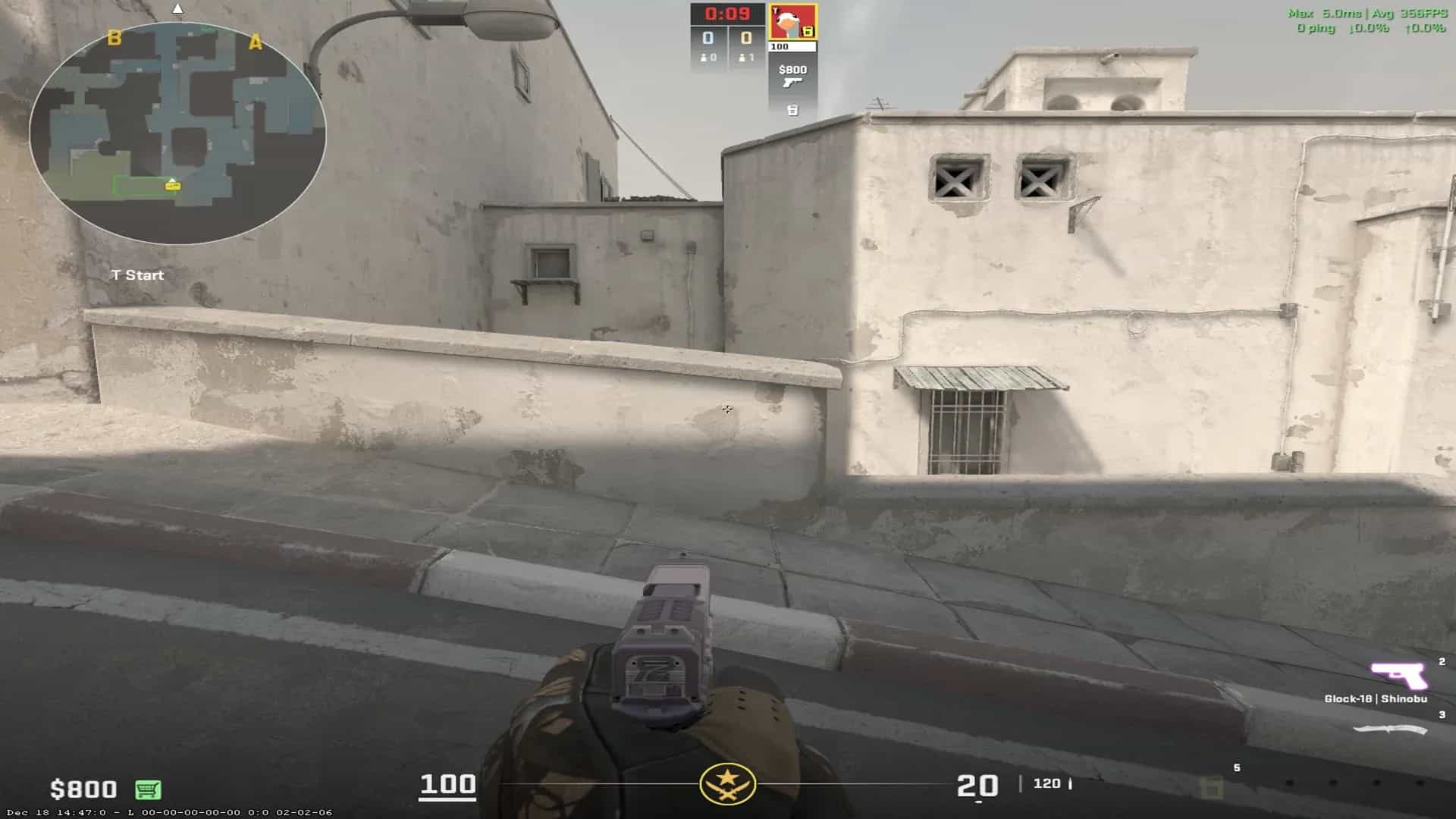
How to change FOV in Counter-Strike 2?

FOV is an important aspect of gaming that controls how the game is perceived by the player. Most games do not allow players to change FOV, especially tactical shooters to ensure uniformity across multiple clients, competitive integrity and saving resources. CS2 also doesn't necessarily allow you to change the FOV, but there are ways to adjust the FOV and your viewmodel’s perspective.
This guide helps you explore the avenue of FOV change in CS2, experiment with various viewmodels, and the various ways FOVs can be changed in CS2.
First let's understand what exactly FOV is and how it affects the game.
What is FOV?
FOV or Field of View is the visible area of a game on your screen. In any shooter, the FOV typically controls the amount of information readily and largely impacts how the game feels. Usually measured as angles in degrees(x°), a larger FOV means more information, while a smaller one is detailed or focused.
For Counter-Strike 2, to ensure competitive integrity, you are not allowed to change the in-game FOV, instead there are two ways you can alter the FOV: First is changing aspect ratio and second is changing the viewmodel FOV.
Let’s tackle these separately, starting with the aspect ratio.
Changing the FOV using Aspect Ratio
The first way to adjust your FOV in CS2 is by adjusting the aspect ratio. Without tweaking the settings, the game defaults to the native resolution, which currently commonly is 1920x1080 or 16:9.
There are two other options available, 4:3 and 16:10. These three options essentially change your FOV. Let’s take a look at what these options look like in-game.
- 16:9 - Larger FOV, Narrow player models, Difficulty Aiming
- 4:3 - Smaller FOV, Wide player models, Easier to Aim
- 16:10 - Middle ground between 4:3 and 16:9.
While most old school pros swear by 4:3, neither is superior and it all boils down to personal preference. But if CS2 is the first FPS you pick up, using the native resolution or default is the best option unless you aren’t satisfied.
Follow the pros play on the biggest stages on Strafe.
How to change FOV using different aspect ratios in CS2?
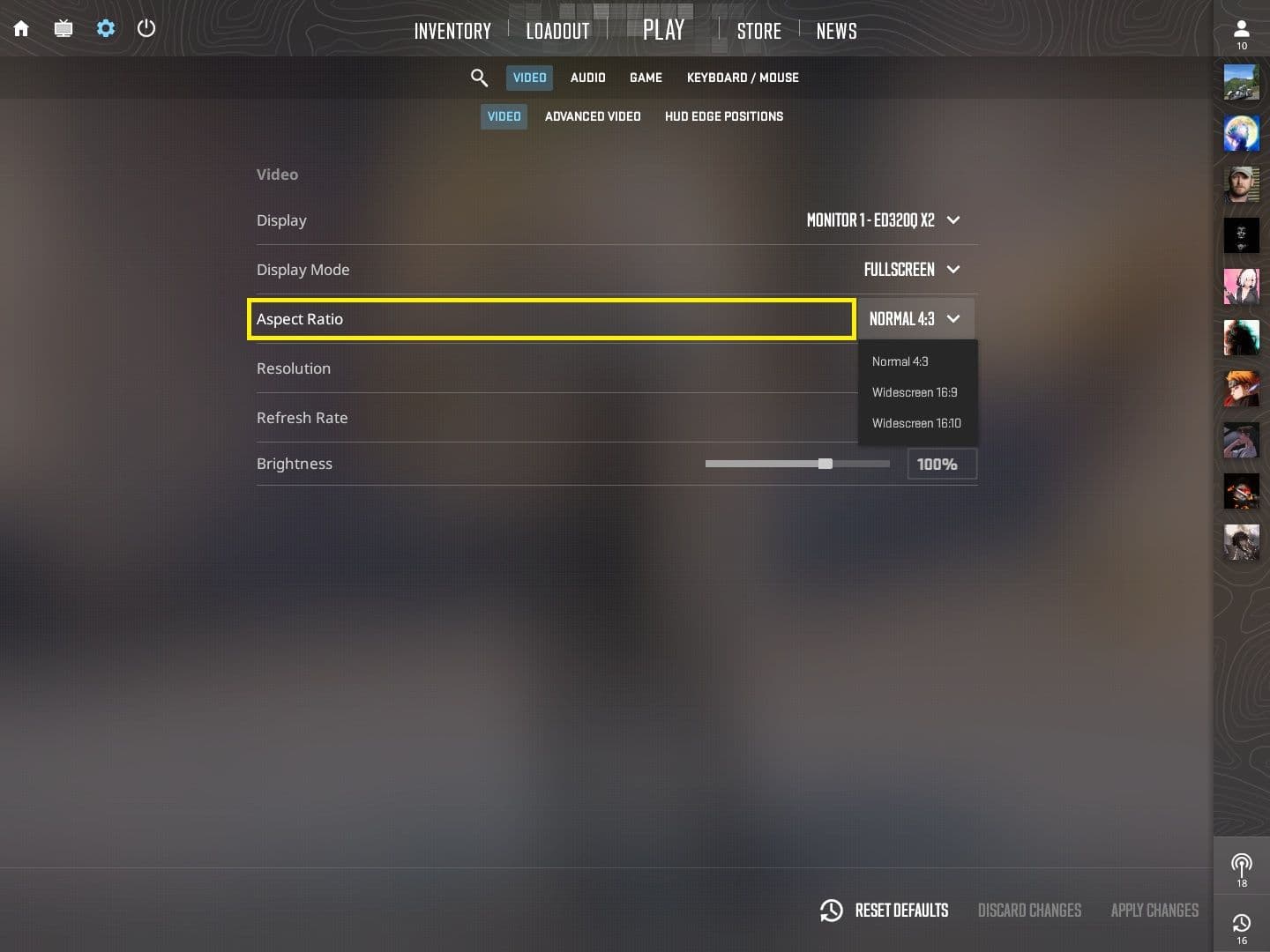
To change the FOV using the aspect ratio:
- Go to Settings
- Navigate to Video Settings
- Under Video tab
- Choose Display Mode - Fullscreen
- Choose Aspect Ratio of your choice
- Choose appropriate resolution (highest possible if the system can handle, go lower based on the game’s performance)
- Choose the highest available Refresh Rate.
- Apply Settings.
The only other option to change the FOV or something similar is changing the viewmodel FOV. Let’s see what that means.
Understanding Viewmodel FOV and Viewmodel commands
As explained before, viewmodel FOV doesn’t necessarily change in-game FOV but it adjusts the viewmodel. Essentially, the viewmodel FOV changes how much the hands and the weapon are visible on screen.
Naturally, there is no one advantageous option. Instead, you can experiment with multiple available options and find the one that feels the most comfortable for you.
How to change Viewmodel FOV
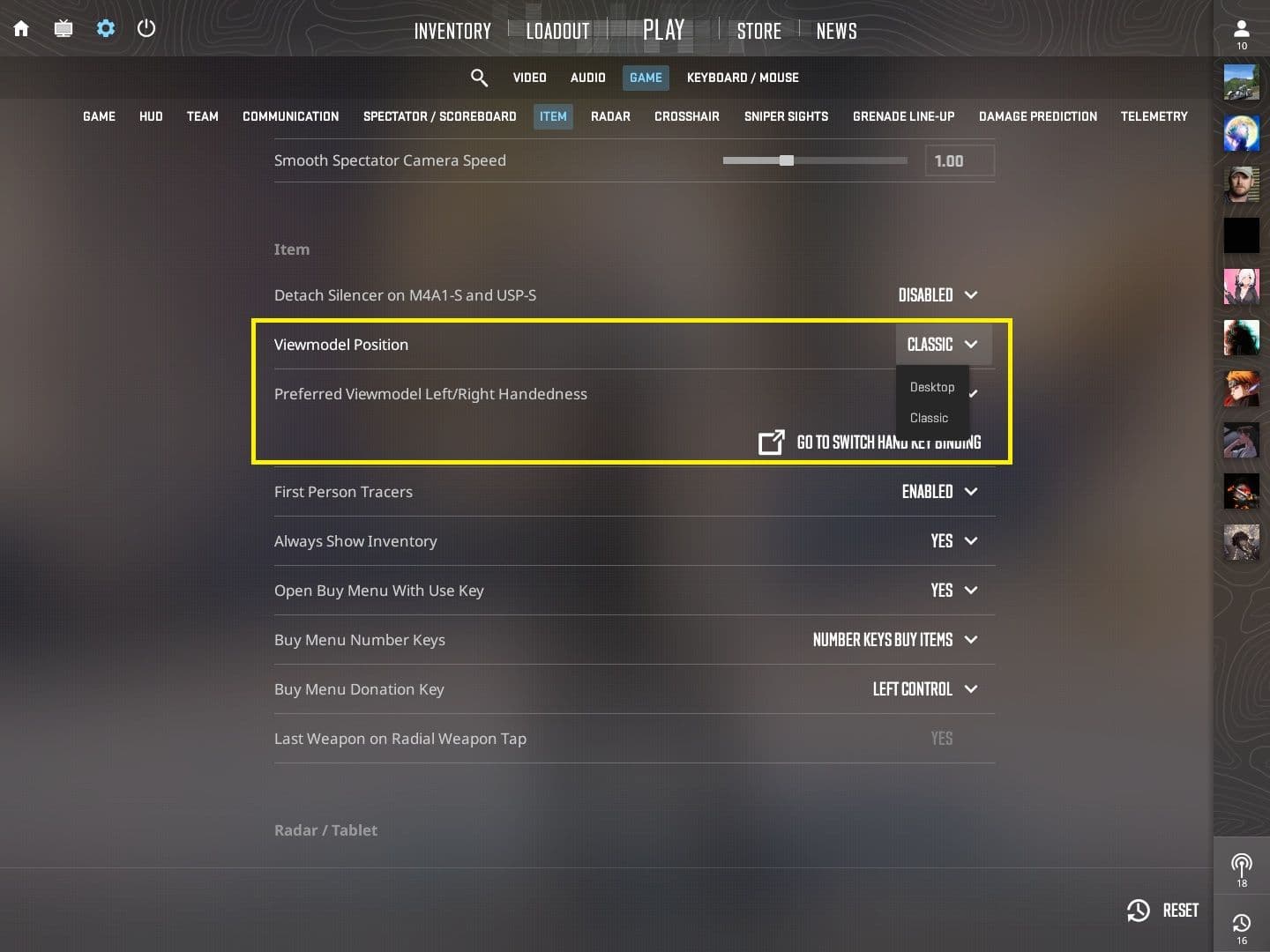
The easiest way to change the viewmodel FOV is through the Settings:
- Under Settings > Game Settings
- Navigate to the Item tab
- Change the Viewmodel position
- Desktop: Viewmodel is more centred
- Classic: Viewmodel is slightly wider
There are more options available but via console commands. The console has to be enabled via settings.
To enable console:
- Go to Settings
- Under Game Settings
- Navigate to Enable Game Console > Yes
The default key to access the console is tilde (~). You can check/change the keybind by following the link below.
Once the console is enabled, there are more options to adjust the viewmodel FOV. Following are the list of commands.
|
Console Command |
range |
What it does |
|
viewmodel_fov |
54 to 68 |
Changes the relative position of the viewmodel (the hands and the gun of your model) |
|
viewmodel_presetpos |
1 - Desktop |
Viewmodel Position in settings |
|
viewmodel_offset_x |
-2.5 to 2.5 |
Viewmodel changes along the x axis (left to right) |
|
viewmodel_offset_y |
-2.5 to 2.5 |
Viewmodel changes along the y axis (up to down) |
|
viewmodel_offset_z |
-2.5 to 2.5 |
Viewmodel changes along the z axis (front to back) |
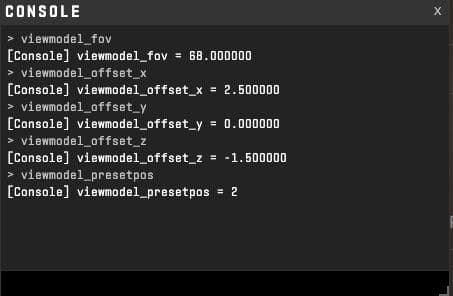
Another way to change the viewmodel is the crashz’ Viewmodel Generator CS2, a workshop map to make changing viewmodel easier.
What Viewmodel do Pros use?
The pros usually choose the default available option or classic. They do not necessarily tweak with the viewmodel or FOV since they are familiar and comfortable with the existing settings.
Additionally, changing FOV is a user experience change that doesn’t impact how the game is played.
There are a few pro players that play on custom viewmodels, you can find them on crashz’ Viewmodel Generator CS2. Said that, the choice is still the players and it might help you control the spray better, or shoot better.
Follow Counter-Strike pros, tournament and matches will live score update and latest news on Strafe
Frequently Asked Questions
Q1. How to switch FOV in CS2?
You cannot strictly switch FOVs in CS2. But you can tweak them slightly using aspect ratios and viewmodels.
Q2. Which FOV to use in CS2?
There is no one correct FOV, viewmodel or aspect ratio, it’s personal preference. Many pros do use the 4:3 aspect ratio but there has been a shift towards 16:9.
Q3. How to change FOV settings?
You can change FOV settings using aspect ratio and viewmodel commands.
Conclusion
Most settings in Counter-Strike 2 are a personal preference. You can change these settings as per convenience. Similarly, FOV and related settings like aspect ratio and viewmodel fov and positioning largely depend on personal comfort. There are pros experimenting with these settings but most go back to the old classics.