
 en
en
Dota 2 Console Commands: Launch Options, Cheats
This guide shows how to enable and use basic Dota 2 console commands. You’ll start by learning how to enable the console and configure launch options, then move on to creating an autoexec.cfg for persistent binds and aliases. We’ll cover the most useful FPS, network, HUD, and minimap commands and explain how lobby cheats (sv_cheats 1) work for practice. Finally, you’ll learn what’s available on public servers versus what only works inside a custom lobby.
Enable console and set the hotkey
Enabling the console gives you direct access to Dota 2 console commands, debug tools, performance settings, and practice utilities. You can enable console support through Steam launch options or by going inside the advanced settings in-game and assigning a console hotkey so you can open it during matches.
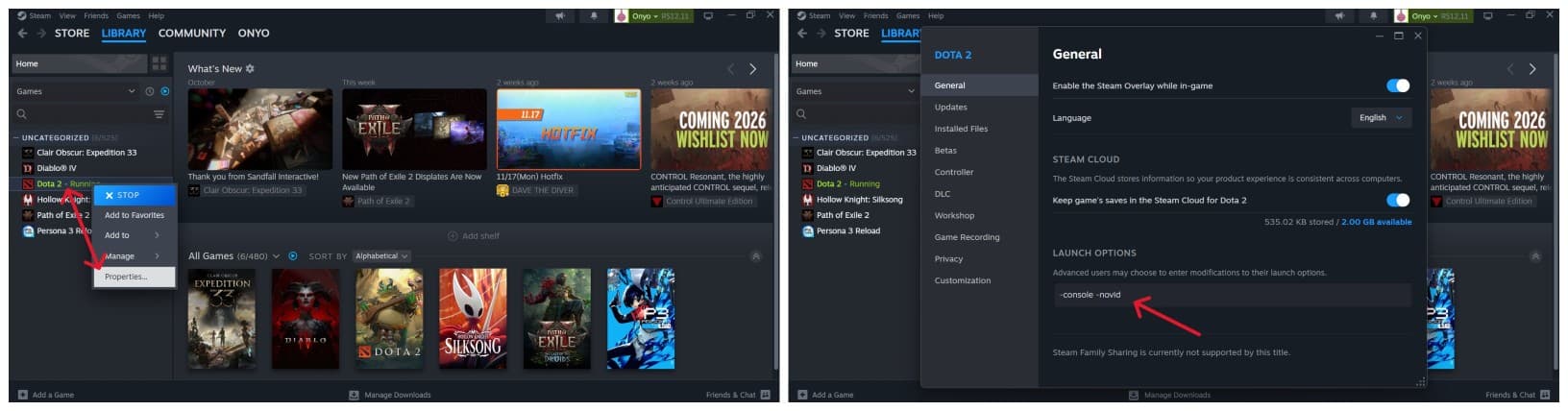
Enable console via Steam launch options (-console)
- Open Steam and go to your Library;
- Search for Dota 2;
- Right-click the game and select Properties...;
- Under the Launch Options field type: -console;
- Launch the game and the console will open when you press the key bound to it.
Enable in-game and bind a key
- Open Dota 2;
- Go to Settings → Type console in the search box;
- Tick “Enable Console” in the miscellaneous section;
- Click the Hotkeys → Interface result;
- Assign your preferred console hotkey.
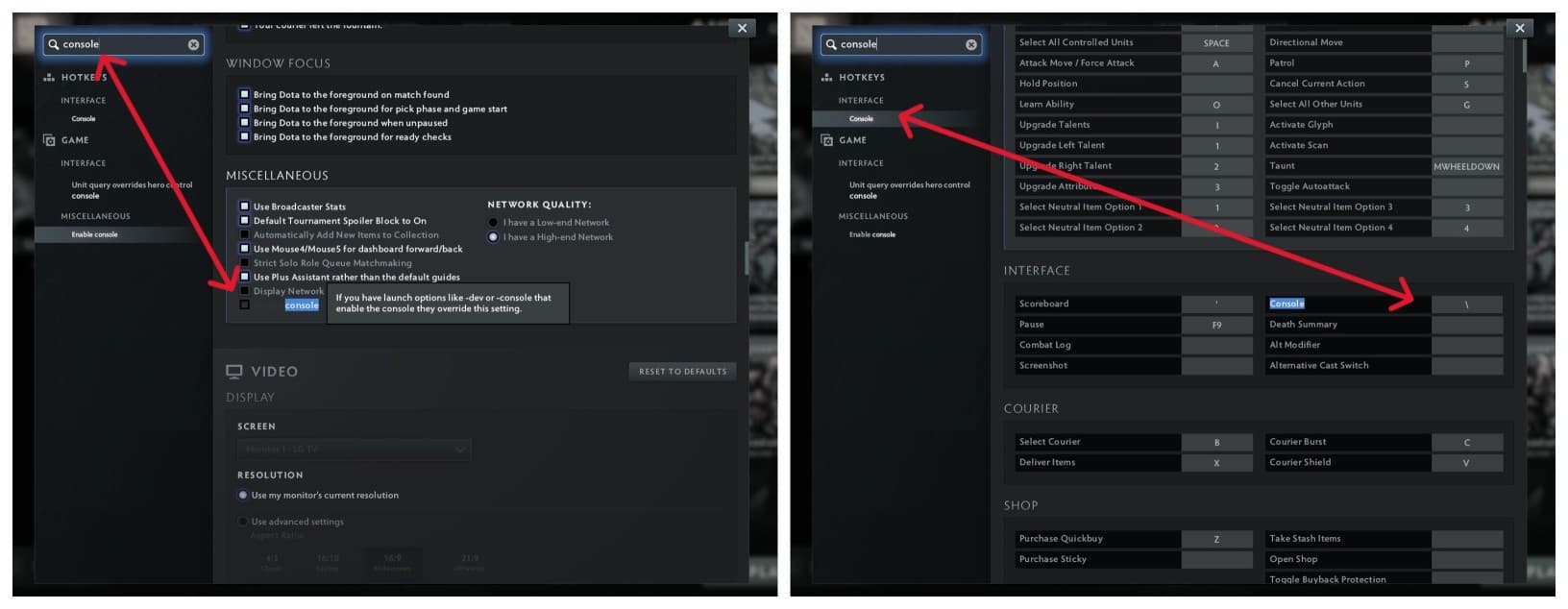
Once you enable console, the default key varies according to system and keyboard language, usually the selected button is to the left of the number one in the superior numeric row. If you have no idea which button to choose, most common options include:
- ` (backtick) on some international keyboards;
- ~ (tilde) on US keyboards;
- ² (squared symbol) on AZERTY keyboards;
- \ on Brazilian ABNT2 keyboards
There are countless variations of keyboards with additional or fewer keys on every region so feel free to choose the best option for your particular case. Try to find a "dead" key that Dota does not use on the left side of your keyboard and bind the console to it.
Troubleshooting when you enable console but it won’t open
- Try switching to windowed mode, then reopen the console;
- Remove conflicting launch options such as toggleconsole;
- Bind the key to a different one temporarily to test it;
- Restart after you enable console for the first time.
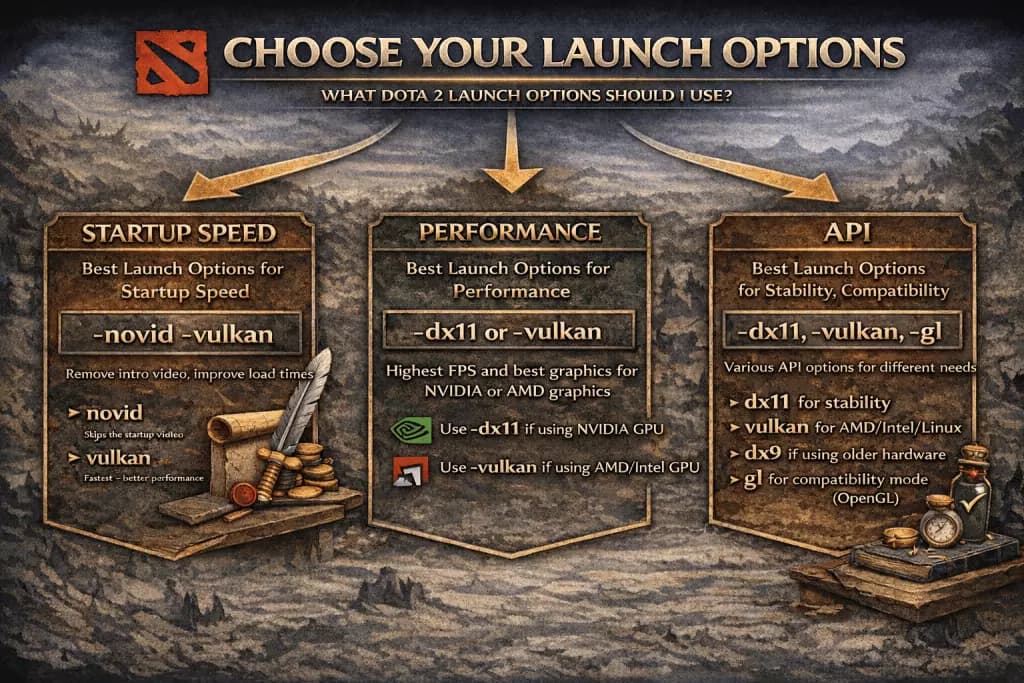
Usually if you activate the console in the steam client launch options, when you open the game for the first time after that, the console opens by itself. In my personal experience I had to rebind the key and press it to see the console.
Best Dota 2 launch options (startup, API, performance)
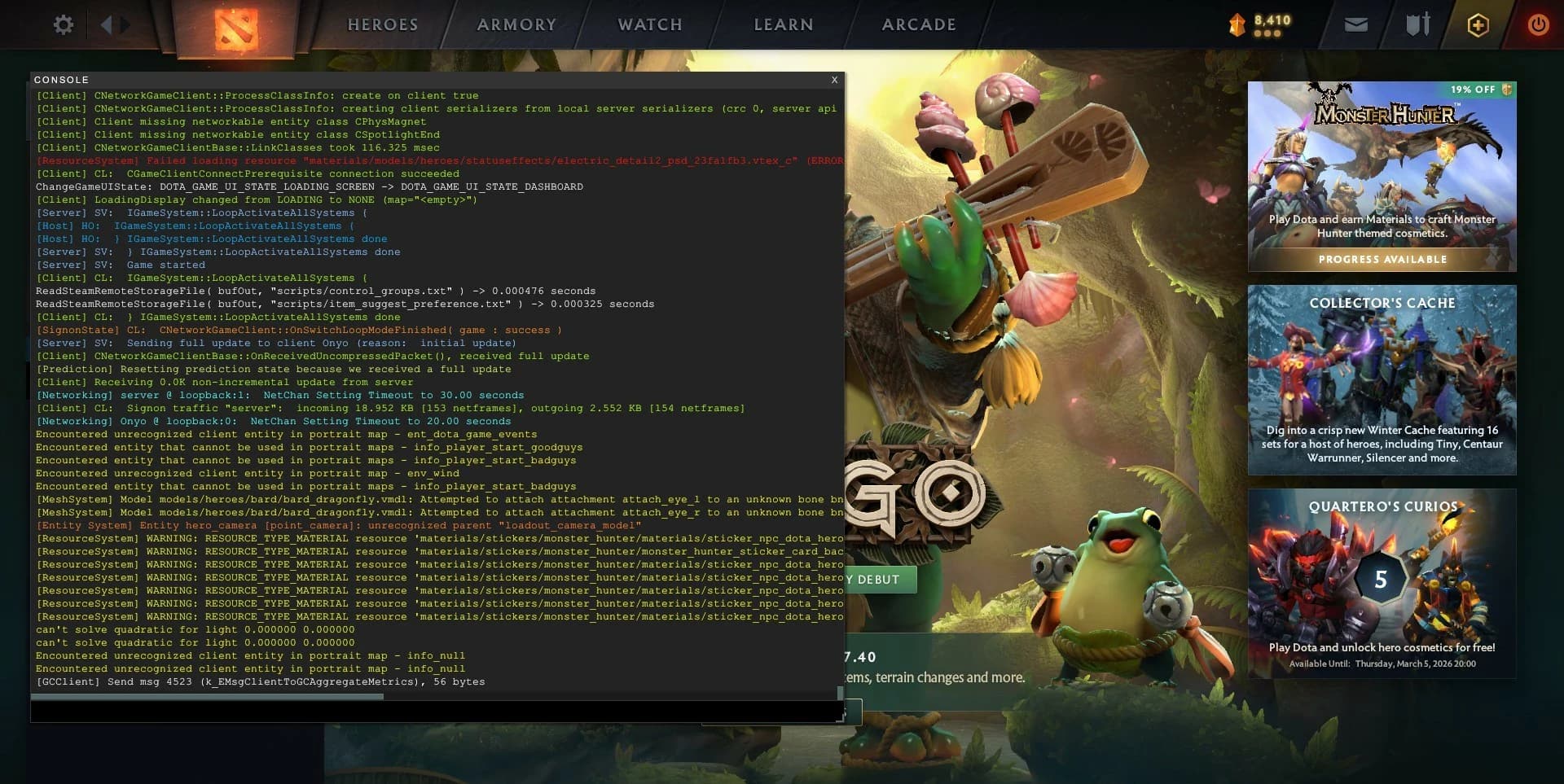
Steam launch options allow you to tweak how the game starts, loads assets, and selects rendering APIs. The goal isn’t to stack every command, it’s to use the ones that fit your system, make quality of life improvements and avoid conflicting flags.
Quick boot options (-novid, -map dota, -high)
These options improve startup speed and responsiveness:
| Launch option | Effect | When to use | Notes |
|---|---|---|---|
| -novid | Skips intro video | Always | Safe performance boost |
| -map dota | Preloads map on launch | Slower PCs | Reduces first-match stutter |
| -high | Higher CPU priority | CPUs with spare headroom | Avoid if multitasking |
Graphics APIs (-dx9, -dx11, -vulkan, -gl)
Different APIs perform better on different machines:
| Option | When to try | Notes |
|---|---|---|
| -dx11 | Most modern systems | Balanced & stable (DirectX 11) |
| -vulkan | New GPUs / Linux / Proton | Often best performance (Vulkan) |
| -dx9 | Very old GPUs | Fallback only (DirectX 9) |
| -gl | Compatibility mode | Rarely recommended (OpenGL) |
Warning: Never combine multiple API flags at once.
Windowed/borderless and resolution flags
Useful for players streaming or multitasking:
| Option | Effect |
|---|---|
| -windowed | Forces windowed mode |
| -noborder | Borderless fullscreen |
| -w 1920 -h 1080 | Forces resolution (e.g. 1920x1080) |
Use these when Dota isn’t detecting your monitor defaults properly. If you change your monitor for another with a lower screen resolution (4k to 2k or FullHD), your game might open using the previous resolution and you will be unable to change it in-game. Using the option of forcing resolution will let you reset things and fix your game.
Quick FPS pack
- -dx11 (for stability. you can try -vulkan to try and get extra performance using AMD/Inter graphics);
- -map dota (preload map);
- -high (Dota has higher CPU priority);
- -windowed (playing windowed is lighter if you reduce the window resolution);
- -w 1280 -h 720 (playing in an HD window instead of a Full HD is "lighter".
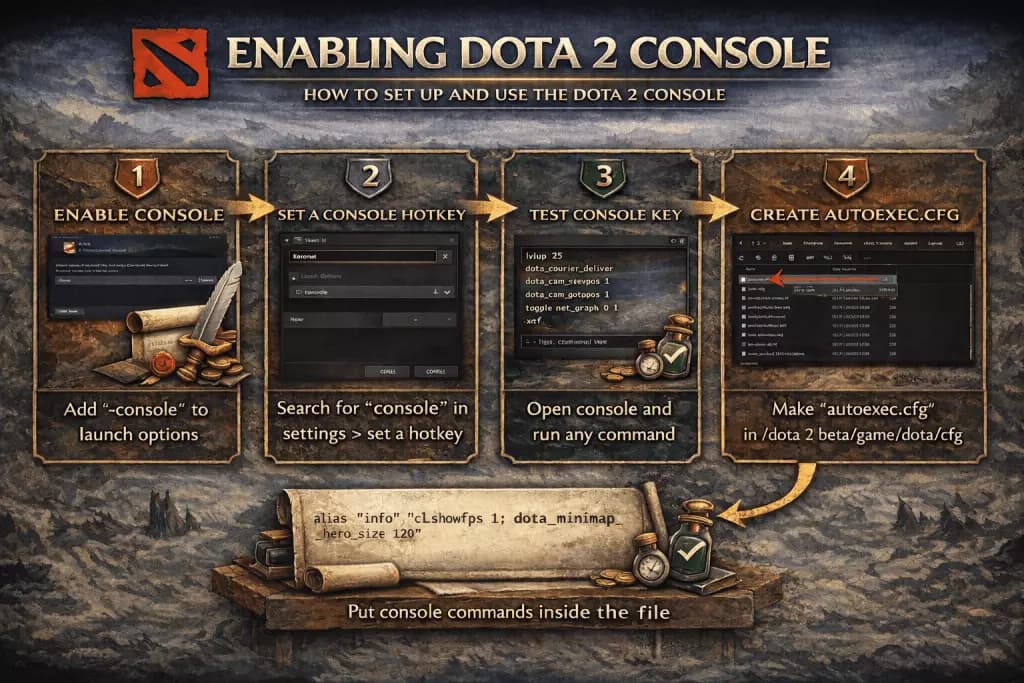
Create and use an autoexec.cfg (binds and aliases)
The autoexec.cfg file lets you bind keys, bind toggles, create aliases and set persistent command values. Unlike temporary Dota 2 console commands (that you activate in the console and are reset after the game is restarted), everything in this file loads automatically when the game starts and is permanent as long as the file remains in the appropriate Dota 2 folder.
Where to save autoexec.cfg
Typical path (on Windows):
Steam\steamapps\common\dota 2 beta\game\dota\cfg\ (The Steam folder is installed inside C:/Program Files (x86) by default)
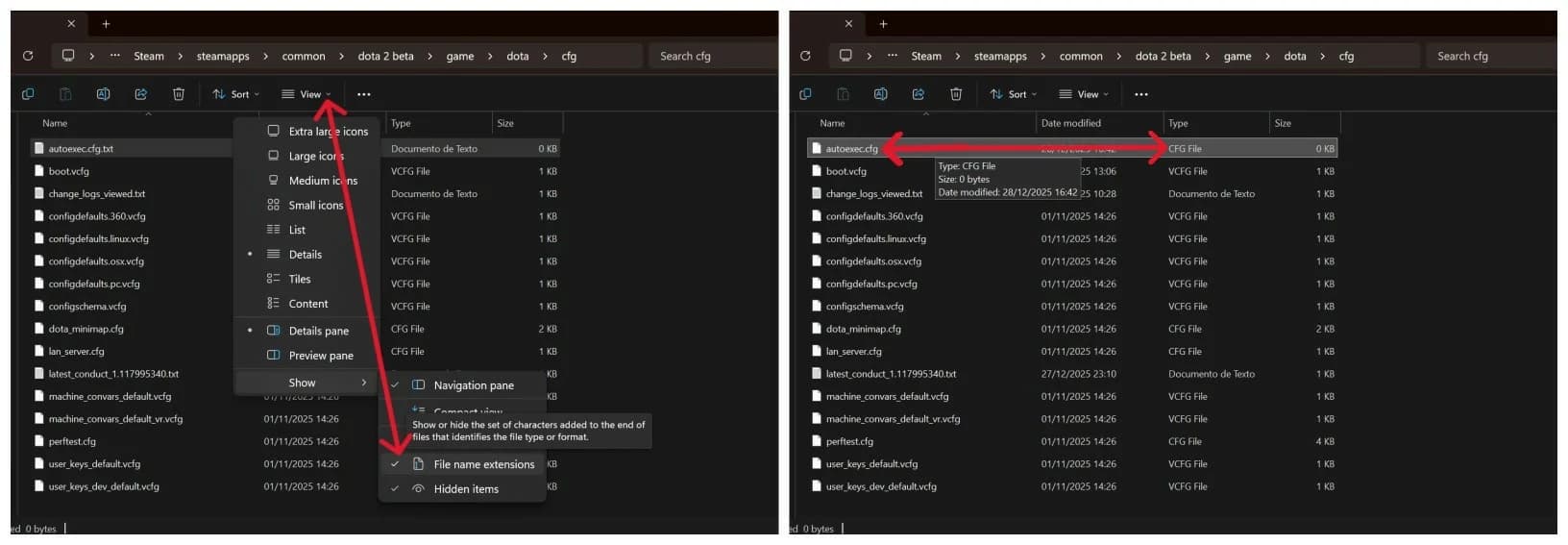
Click with the right mouse button inside the folder and create a new text document named:
autoexec.cfg
It's important to note that the file extension should be .cfg and not .txt as it is the default for text documents. If you need to change the file extension (on Windows 11) click on the "View" button inside the folder, hover the cursor over "Show >" (last option on the list) and click "File name extensions".
Example binds and camera aliases
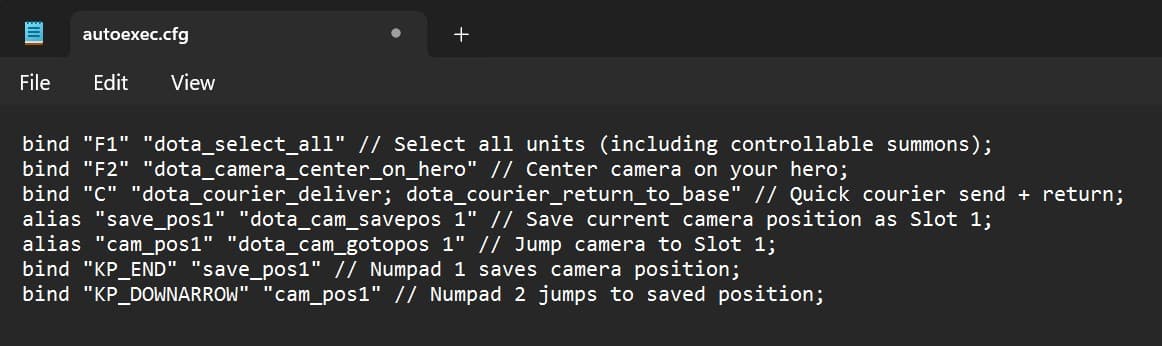
Here’s a simple starter script:
- bind "F1" "dota_select_all" // Select all units (including controllable summons);
- bind "F2" "dota_camera_center_on_hero" // Center camera on your hero;
- bind "C" "dota_courier_deliver; dota_courier_return_to_base" // Quick courier send + return;
- alias "save_pos1" "dota_cam_savepos 1" // Save current camera position as Slot 1;
- alias "cam_pos1" "dota_cam_gotopos 1" // Jump camera to Slot 1;
- bind "KP_END" "save_pos1" // Numpad 1 saves camera position;
- bind "KP_DOWNARROW" "cam_pos1" // Numpad 2 jumps to saved position;
- dota_force_right_click_attack 1 //Activates the right click deny when an ally is below 50% HP.
It's important to note that Numpad 1 and the number 1 on the row below your keyboard's function buttons are different keys and you might not get the desired result if you bind keys to the numpad and try to use the upper row. The right click deny was one of the many options added to Dota's new settings menu, all you need to do is to open the game, go into settings and search for deny.
Some bindings that improved reaction time such as turning the Armlet of Mordiggian off and back on with one key press were taken out of the console capabilities and sparked some controversy in the community. These bindings made playing the game easier but were also seen as "cheating" by some tournaments so Valve removed them as an option entirely to avoid dealing with the complexities of each tournament's rulebook concerning this.
Maintenance and migration tips
- Add comments using // to stay organized (comments are not read by the Dota 2 console and will not affect your autoexec's functionality but are useful to remember what each command does);
- Keep a backup when reinstalling (saved in an external drive or a flash drive);
- Sync the file via cloud storage if you play on multiple PCs (you can keep a copy in OneDrive since it sends stuff to the cloud by default and recovers everything along with a new Windows installation assuming you're logged in to your Microsoft account).
Performance and network commands that matter
These Dota 2 console commands help you measure the game's performance in real time, cap FPS if needed, and monitor network behavior during matches.
FPS visibility and caps
| Command | Purpose | Default | Recommended |
|---|---|---|---|
| cl_showfps 1 | Show FPS counter | Off | On while testing |
| fps_max 120 | Caps FPS | 0 (uncapped) | Match monitor refresh rate (usually 60Hz = 60FPS) |
| mat_vsync 0 | Disable vsync | Varies | Off for latency, on to fix broken frames |
You can keep cl_showfps and net_graph on while playing public matches if you want to always be able to check how is the game and your connection are performing. fps_max is also available as a slider inside the game settings.
Net_graph and ping insights
| Command | Purpose | Default | Recommended |
|---|---|---|---|
| net_graph 1 | Shows ping, loss, choke | Off | Enable when diagnosing connection |
| rate | Network bandwidth limit | Auto | Leave default |
| cl_interp_ratio | Interpolation settings | Auto | Avoid manual changes |
Use the net_graph to diagnose connection issues but avoid changing values in this section without a reason, it might break your game's connection.
Interpolation, network rate and vsync notes
- Lowering values too far may cause rubber-banding (will make it worse instead of making it better);
- Competitive players should prioritize stability over tweaks;
- Test changes in bot matches first not to face any unexpected results during ranked matches.
HUD and minimap customization (clarity boosters)
These Dota 2 console commands can help you improve readability, hero visibility, and input accuracy, especially on high-resolution or ultrawide displays. If anything unexpected happens, reverse most recently altered value.
Healthbar markers and clarity
| Command | What it changes | Suggested values |
|---|---|---|
| dota_health_per_vertical_marker | HP ticks per marker | 200–250 |
| dota_health_marker_major_alpha | Marker visibility strength | 255 |
Minimap visibility and misclick protection
| Command | What it changes | Suggested values |
|---|---|---|
| dota_minimap_hero_size | Hero icon size on minimap | 900–1200 |
| dota_minimap_misclick_time | Delay to prevent misclicks | 0.3–0.5 |
| dota_minimap_disable_rightclick | Disables right click on the minimap | 0 to disable, 1 to enable |
It's possible to increase the dota_minimap_hero_size command above the suggested values but it might affect your experience using the minimap negatively. dota_minimap_hero_size also has a slider in the game settings going from 50% to 200% size and a toggle to scale the size dynamically.
HUD/minimap clarity pack
- dota_health_per_vertical_marker 200 (it's easier to know how much health you have by choosing round numbers. 100 adds too much visual clutter, 500 or 1000 is too big of an interval);
- dota_minimap_disable_rightclick 1 (no need to add missclick protection if you disable map clicking);
- dota_minimap_hero_size 1000 (adjust to your personal preference. Too big might clutter minimap).
Range finder and camera QOL
The range finder helps you line up spells or know the range for important items such as blink dagger. Bind it in your autoexec.cfg for quick toggles during fights.
dota_range_display 1200
1200 units is the maximum range for blink dagger and has been used as default by many players. You can also add a similar persistent range indicator by activating it in the game settings and pressing alt+right clicking a particular element (attack value for attack range, ability/item for range, etc) as demonstrated by Torte de Lini on this video.
Lobby cheats and sv_cheats 1 (for practice and testing)
Lobby cheats are learning tools for testing builds, mechanics, and spell interactions. They only work with sv_cheats 1 enabled and do not function on public servers.
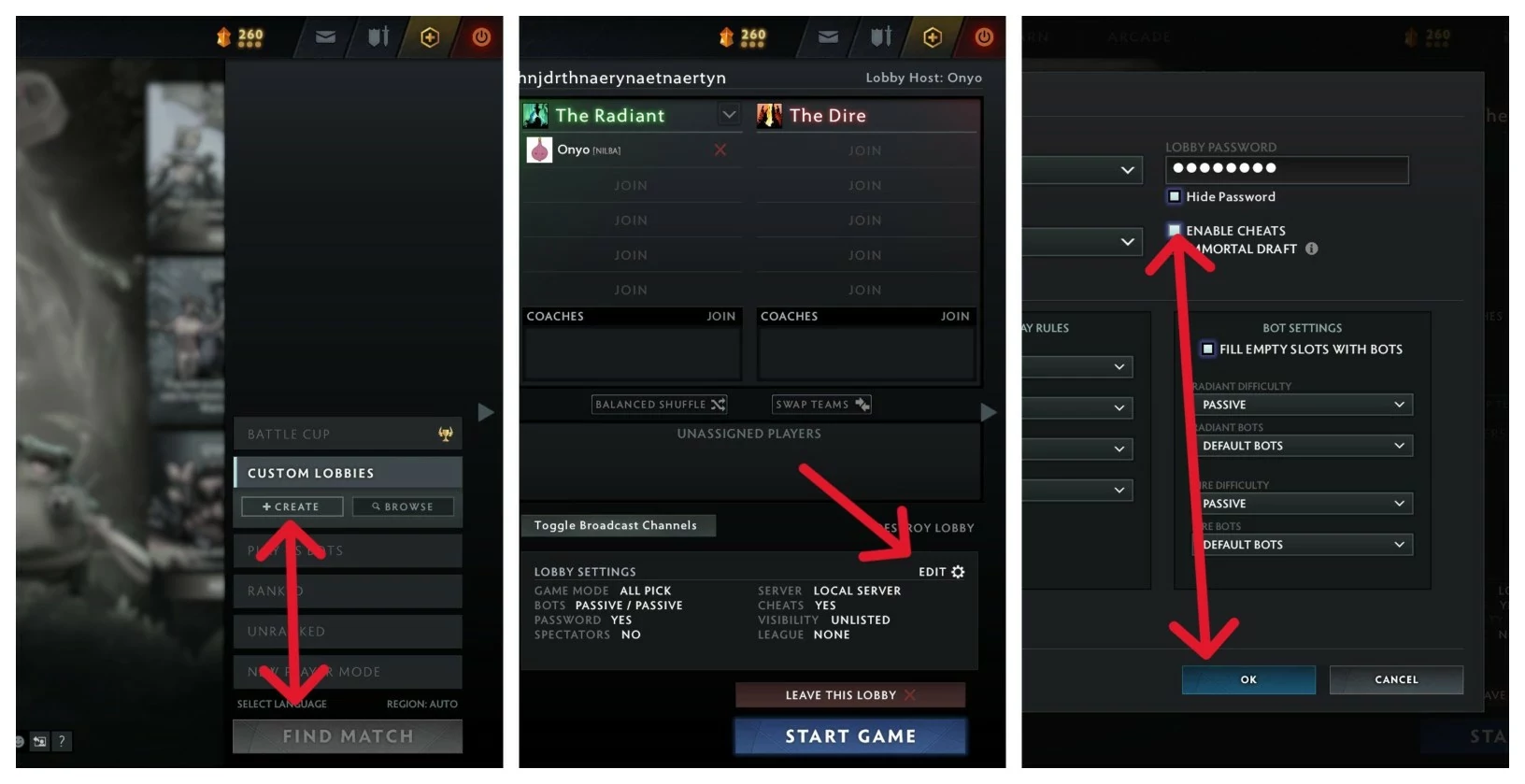
Enabling lobby cheats in a custom lobby
- Create a custom lobby;
- Edit → Enable Cheats → OK;
- If still not active when already in-game, go in console and type: sv_cheats 1 (1 to active, 0 to inactive);
Common chat-based lobby cheats
These Dota 2 console commands can be typed directly in the game chat but only work in custom lobbies with cheats enabled.
| Command | Description |
|---|---|
| -lvlup # | Increases the level of the selected hero by #. |
| -levelbots # | Increases the level of all bots on the map by #. |
| -rapgod | Sets hero level to 30 and fills the inventory with 3 Divine Rapiers, Daedalus, Heart of Tarrasque and Upgraded Boots of Travel. |
| -gottagofast | Sets hero level to 30 and fills the inventory with Sange and Yasha, Drums of Endurance, Blink Dagger, Eul's Scepter of Divinity, Silver Edge and Upgraded Boots of Travel. |
| -hurtmebad | Reduces the hero’s health to 1. |
| -gold # | Gives your hero # amound of gold. |
| -refresh | Replenishes all heroes' and illusions' (own, allied and enemy) health and mana to full. Refreshes their ability and item cooldowns. Also resets the cooldowns of Glyph of Fortification and Scan. Does not affect buyback cooldown. |
| -respawn | Immediately resurrects your hero. |
| -suicide | Instantly kills your hero. |
| -spawncreeps | Instantly spawns lane creeps on each lane for both teams. |
| -spawnneutrals | Instantly spawns neutral creeps at each camp. Does not spawn when other neutral creeps are within the spawn area, but ignores other units. |
| -killwards | Destroys all placed sentry wards and observer wards. |
| -clearwards | Destroys all placed observer wards. |
| -createhero <name_hero> | Spawns a friendly hero. Add “enemy” after the command to spawn an enemy hero. |
| -item <item_name> | Gives you a specific item (works with neutrals). Some items have different development names so you might have to check them online (e.g. Shadow Blade = give item_invis_sword). |
| -givebots <item_name> | Gives all bots on the map the selected item. |
| -ping | Shows current ping (also available in regular games). |
| -startgame | Skips the preparation phase and immediately starts the match. |
| -teleport | Teleports the selected hero to the cursor’s location. |
| -wtf | Activates WTF mode (no cooldowns and no mana costs). |
| -unwtf | Deactivates WTF mode. |
| -trees | Respawns all trees on the map. |
| -allvision | Removes the fog of war. |
| -normalvision | Re-enables the fog of war. |
| -killcreeps all | Kills all creeps on the map. Replace “all” with “radiant”, “dire”, or “neutral” to target only specific groups. |
| -disablecreepspawn | Disables creep spawning. |
| -enablecreepspawn | Enables creep spawning. |
Dev/test Dota 2 console commands (host_timescale, camera distance)
- Normal speed: host_timescale 1.0;
- Slow motion: host_timescale 0.2 (You can use any value less than 1.0 for slower speeds);
- Faster speed: host_timescale 2.0 (You can use any value greater than 1.0 for faster speeds);
- dota_camera_distance 1134: Default camera distance.
- dota_camera_distance 1400 or 1600: Provides a more zoomed-out view that some players prefer for testing or spectating.
You can set the value camera distance to anywhere from 1 to a very high number (e.g., 6250) to see how it looks, though extremely high values may cause visibility issues.
Safety and scope: public vs custom lobbies
Understanding command scope is critical when using Dota 2 console. Always test in bot matches or custom lobbies and remember to remove whatever doesn't work as expected so that you're not forced to abandon games to fix your game.
What’s safe to use anywhere
- UI/HUD/minimap settings;
- cl_showfps / net_graph / fps_max;
- Launch options;
- autoexec.cfg quality-of-life binds.
What’s restricted to custom lobbies
Anything that requires sv_cheats 1 only works in a custom lobby:
- host_timescale;
- -wtf / -gold / -lvlup;
- Debug and dev Dota 2 console commands.
Do/don’t reminders (safety checklist)
Do
- Practice builds in cheats lobbies (e.g. time going faster makes it easier to test stuff);
- Keep commands user-friendly (make comments using // to remember stuff and make it easier to refer to someone else);
- Test configs before ranked.
Don’t
- Attempt to run lobby cheats on public servers;
- Download “config packs” from unknown sources;
- Stack conflicting launch options (e.g. more than one rendering flag).
Public servers vs Custom lobby: where to use which commands
| Environment | Allowed | Restricted | Examples Allowed |
|---|---|---|---|
| Public Servers | UI / HUD tweaks, performance commands, network display, keybinds, launch options | Cheats, dev/debug commands, gameplay-altering features | cl_showfps, net_graph 1, fps_max, dota_minimap_hero_size, bind, toggleconsole |
| Custom Lobby (sv_cheats 1) | All public-safe commands plus practice & cheat tools | Ranked matchmaking, online competitive play | sv_cheats 1, -wtf, -refresh, -lvlup, -gold, host_timescale, -respawn, -spawncreeps, -createhero |
Conclusion
Dota 2 console commands give you powerful control over performance, visibility, and practice tools. Start by enabling the console, choosing smart launch options according to your needs and building a clean autoexec.cfg. Use FPS and HUD tweaks to improve clarity and remember that sv_cheats features belong only in custom lobbies. Keep public-safe settings for matchmaking.
FAQ
How do I enable the console in Dota 2?
Use Steam launch options (-console) or enable it in the in-game settings, then bind a console hotkey.
What are the most useful Dota 2 console commands?
Start with cl_showfps, net_graph, fps_max, range finder and minimap/HUD clarity commands.
How do I create and use an autoexec.cfg?
Create autoexec.cfg in the dota/cfg folder, add the Dota 2 console commands, bind keys and aliases. The file runs automatically at startup.
Which commands require sv_cheats 1 and where can I use them?
Commands like sv_cheats 1, dev tools and chat cheats only work in a custom lobby and are not allowed on public servers.
What launch options should I use?
Common picks include -novid to skip the launch video, -map dota to preload the map, reducing loading times and an appropriate rendering flag.